Docs / Nebula Sound System documentation / 10. MIDI keyboards
10. MIDI keyboards
MIDI keyboards: input, hardware mapping, MIDI output, per-track ports, clock receive, timecode, program change, MPE and Lua controller scripts.
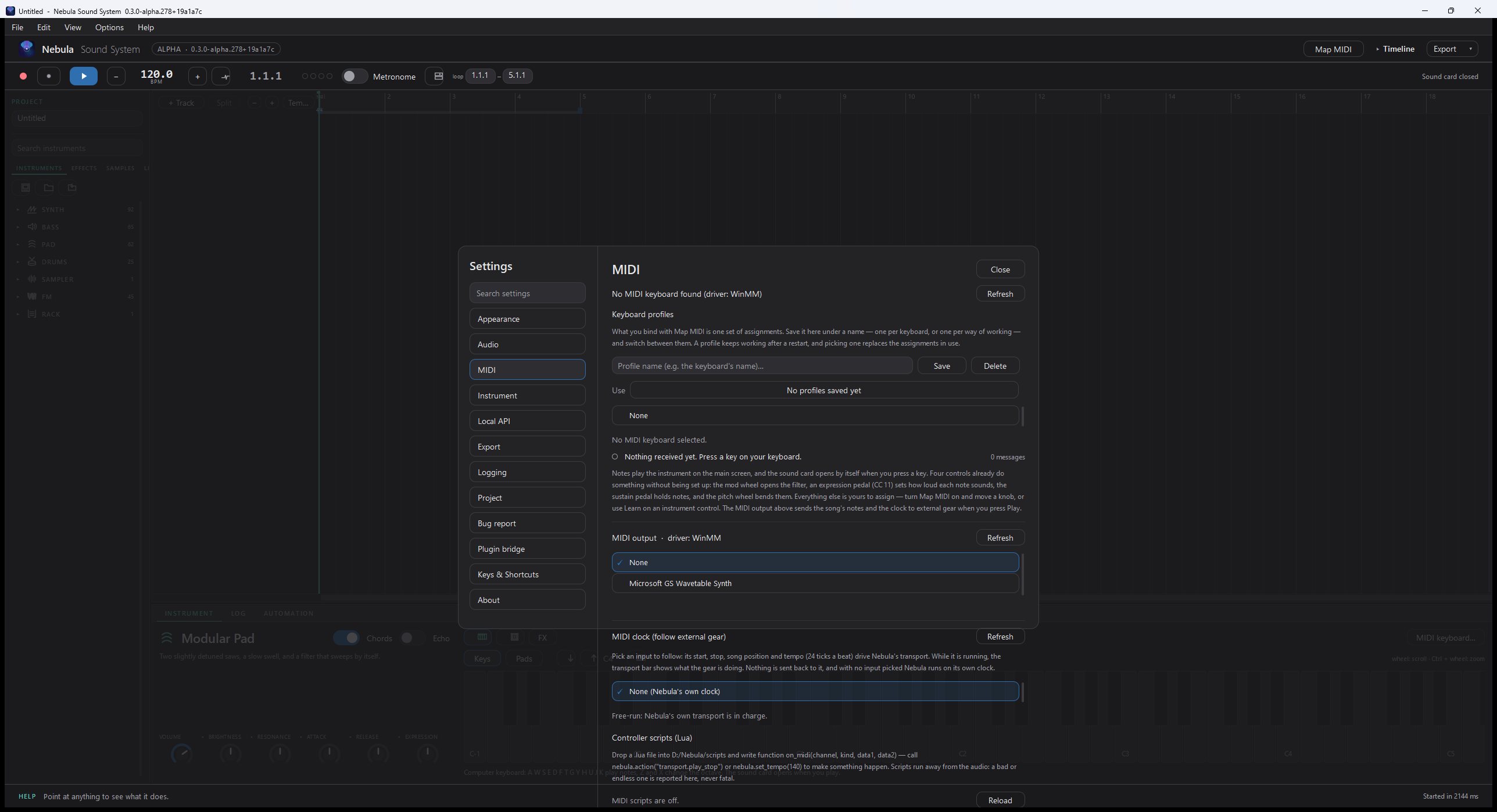
- Plug in one or more keyboards; each appears in Settings → MIDI and can be enabled on its own.
- Hardware mapping: move a control on your keyboard, choose the knob it should drive, and it is learned. The map is shared by all your keyboards, so one mapping works everywhere.
- No keyboard? The computer keyboard and the on-screen keys are enough to write with.
- Sending MIDI out: pick a port in Settings → MIDI under MIDI output and the notes the song plays go out of it, with the clock (24 ticks a beat), so a hardware synth or another program plays along. Pressing Play sends Start from the top or Continue from anywhere else, and Stop sends Stop. Nothing is sent until you pick a port, and "None" stops the sending.
- One track on its own port: right-click a track in the timeline and choose MIDI output port to send just that track out of a different device than the rest of the song (Song's port — the default — puts it back). Handy when your drums and your synth live on two interfaces. Automation goes out with the notes: draw a fader or pan lane and those moves leave as CC 7 (volume) and CC 10 (pan) too, so the gear follows the mix.
- Tighter MIDI timing: Settings → MIDI → MIDI send interval (under Show advanced) sets how often Nebula empties its out-tray — 4 ms by default, down to 1 ms. A smaller number sends notes and clock ticks sooner; a larger one wakes the app less often.
- Following external gear: pick an input under MIDI clock and Nebula runs on ITS clock instead: the tempo comes from the ticks it sends, and its start, stop and song position move the transport (the bar shows what the gear is doing). With no input picked — or when the gear goes quiet for half a second — Nebula free-runs on its own tempo, exactly as before. Nothing is sent back to the gear.
- MIDI Timecode: with Send MIDI Timecode on, the song's position goes out of the chosen output, so video or lighting gear follows the song; Timecode frame rate picks 24 (film), 25 (PAL), 29.97 drop or 30 (NTSC). Incoming timecode moves the playhead to the position it names.
- Program change: each track has a MIDI channel (right-click the track header → MIDI channel). The track's notes go out on that channel, and choosing an instrument preset tells the gear the matching program number; the other way round, a program-change message arriving on that channel selects the instrument preset of the number sent.
- MPE (per-note expression): if your keyboard sends each note on its own MIDI channel (an MPE controller — a Seaboard, a LinnStrument), turn on MPE in Settings → MIDI. Every note then keeps its own pitch bend, aftertouch and slide (CC74): bending one note no longer bends the chord, and the wheel's range becomes ±48 semitones (MPE bend range changes it, 1–96). Off by default, so an ordinary keyboard behaves exactly as before. MPE output does the same on the way out: each voice's notes and bends leave on that voice's own channel, and the receiver is told the bend range before the first note — pick it when an MPE-capable synth should play along.
- Controller scripts (Lua): Settings → MIDI → Lua controller scripts runs the
.luafiles in Nebula's data folder (scripts/). A file definesfunction on_midi(channel, kind, data1, data2)and can callnebula.action("transport.play_stop"),nebula.set_tempo(140)ornebula.log("...")— so a pad on your controller can start the transport, set the tempo, or run any action a shortcut can. A script runs on its own thread, away from the audio, and is sandboxed (no files, no programs, no packages); a bad or endless one is reported on that page, with a Reload button to pick up your edit. Nothing is read until the switch is on.
Updated 2026-11-03